
Struggling with QuickBooks File Doctor not working or company file errors? Discover proven fixes to repair corrupted QuickBooks files and restore smooth access fast.
You can experience a situation where you’re unable to open or access your QuickBooks company file due to corruption. There are various factors that can lead to QuickBooks company file corruption, such as bad sectors on hard drive, insufficient space on the system hosting the QuickBooks application and company file, improper system shutdowns, etc. To resolve company file issues, you can use different QuickBooks repair tools. One of the tools recommended by Intuit is QuickBooks File Doctor. This tool is available in QuickBooks Tool Hub, which is an open source.
However, sometimes, while opening or accessing the QuickBooks file doctor tool, issues may arise, such as “QuickBooks File Doctor not working” or “QuickBooks File Doctor does nothing.” One of the related queries from the Intuit community highlighting this problem is:
| I’m using QuickBooks 2019 Pro Desktop. The QuickBooks file doctor tool opens after reinstalling QuickBooks and Tool Hub, but the company file fails to open, it requires a forced shutdown. I’ve tried running file doctor for over 36 hours; it just sits idle with no progress or error codes. This suggests an issue with both the File Doctor tool and possibly my company file. |
The QuickBooks File Doctor can stop working due to various reasons. Here, we will discuss some of the causes behind this issue and the solutions to fix it. To ease company file repair, consider using a reliable QuickBooks repair tool, such as Stellar Repair for QuickBooks.
Article Breakdown
Causes of the QuickBooks File Doctor not Working Issue
Some of the reasons associated with this issue are:
- Your system does not have the specifications required to run the QuickBooks tool hub
- Lack of admin permissions on the QuickBooks Tool Hub
- Power outage or network connectivity issue
- Issue with the QuickBooks Tool Hub installation files
- The size of the company file that you’re trying to open is too large
- The company file is severely corrupted
- The system on which you’re trying to open the QuickBooks Tool Hub contains malware or viruses
- Outdated version of QuickBooks Tool Hub
- You might be trying to add incorrect admin credentials while repairing the company file
Workarounds to Resolve QuickBooks File Doctor not Working Issue
If your QuickBooks File Doctor is not working, then you can try the following workarounds.
Workaround 1 – Update Windows
Sometimes, installing the latest Windows updates on your PC, where QuickBooks Tool hub is installed, can fix help this issue. So, check for latest Windows updates and install them. After installation, open QuickBooks Tool Hub and check if the issue is resolved.
Workaround 2 – Run the Condense Data Utility
Is the size of the QuickBooks company file is behind the QuickBooks File Doctor tool not working issue? To check and resolve this, you can go to the company file folder and check the file size. If the size of the QBW file is large, then use the Condense Data utility to reduce its size. Here are the steps to perform the same:
- In your QuickBooks application, click File and then click Utilities.
- Click Condense data.
Workaround 3 – Check and Update QuickBooks Tool Hub
The QuickBooks File Doctor tool can stop working if the QuickBooks Tool hub from where you’re trying to open it is outdated. So, it is necessary to check the version of the QuickBooks Tool hub you’re using. It must be of the advanced version. To check and update the QuickBooks Tool Hub, follow these steps:
- From your QuickBooks Tool Hub, go to the option labeled About/what’s new.
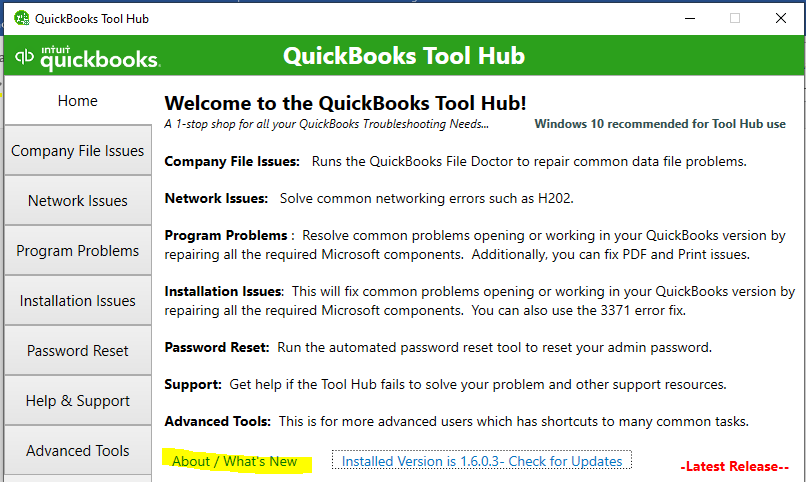
- If the tool is outdated, then you can download and install the latest version of the QuickBooks Tool Hub, and then try to run the QuickBooks File Doctor tool.
Workaround 4 – Reinstall QuickBooks Tool Hub
The issues, like corruption in the installation files of the QuickBooks tool hub, can lead to QuickBooks File Doctor tool not responding issue. If this is the case with you, reinstall the QuickBooks Tool Hub to fix the issue. Here’s how to do so:
- First, close your QuickBooks application.
- Next, download the latest version of your QuickBooks Tool Hub and then save the file.
- Then, open the .exe file and then follow the installation instructions on the software.
- Wait till the installation process is complete and then double-click on the QuickBooks Tool Hub icon to start the tool.
Now, try to open the QuickBooks File Doctor tool.
What if the Workarounds Fail to Resolve the Issue?
If the workarounds mentioned above fail to resolve the QuickBooks File Doctor not working issue, then you can use alternative tools like Verify and Rebuild utility and a professional QuickBooks repair tool to repair the company file. Using the Verify and Rebuild tool may not work if your company file is severely corrupted.
Why Use a Professional QuickBooks Repair Tool to Repair Company Files?
A professional QuickBooks repair tool, like Stellar Repair for QuickBooks, doesn’t require any backup file. You can easily fix the company file issues without any file size limitations. Also, it has an intuitive user interface that is simple to operate. It allows you to recover all the data from the QuickBooks company file with complete precision. Moreover, you don’t require QuickBooks credentials to repair the company file using this tool. It allows you to preview the repairable data in the QuickBooks company file before saving it. It supports all Windows versions and QuickBooks versions (Pro, Premier, and Enterprise).
Conclusion
You can use QuickBooks File Doctor tool in case of corruption issues in the company file. Sometimes, the tool doesn’t work due to various reasons. This post outlined workarounds you can perform to resolve the QuickBooks File Doctor not working issue. If the workarounds fail to resolve the issue, you can use other alternative methods to repair the company file. The reliable method to repair a company file is by using a professional QuickBooks repair tool, such as Stellar Repair for QuickBooks. This tool is built with advanced algorithms that help you repair QBW file quickly and with no data loss.