Brother MFC-J6910DW A3: can it print canvas style? A real-world, honest breakdown of quality, limits, and workarounds.
Yes, the Brother MFC-J6910DW can print canvas-style images on A3, but it cannot print true stretched artist canvas. With the right canvas paper, settings, and expectations, it can produce convincing canvas-like results.
It usually starts quietly.
You’re scrolling through framed wall art online. Everything looks textured. Expensive. Almost painterly. Then you glance at the printer sitting in your room, the Brother MFC-J6910DW, and a slightly reckless thought creeps in:
Could this thing do canvas?
Not gallery-grade, not “sell it for $300” canvas. Just… that textured, matte, almost-painted look. Something you could hang without feeling embarrassed.
I’ve been there. Googling late. Half-hoping the answer is yes, half-expecting disappointment. And that’s where this article lives, in the honest space between marketing promises and real-world printing experiments.
So let’s figure it out together: Brother MFC-J6910DW A3, can it print canvas style, really?
Article Breakdown
Understanding the Brother MFC-J6910DW A3 at Its Core
Before we talk canvas, we need to understand what this printer is, and just as importantly, what it isn’t.
What the Brother MFC-J6910DW Was Designed For
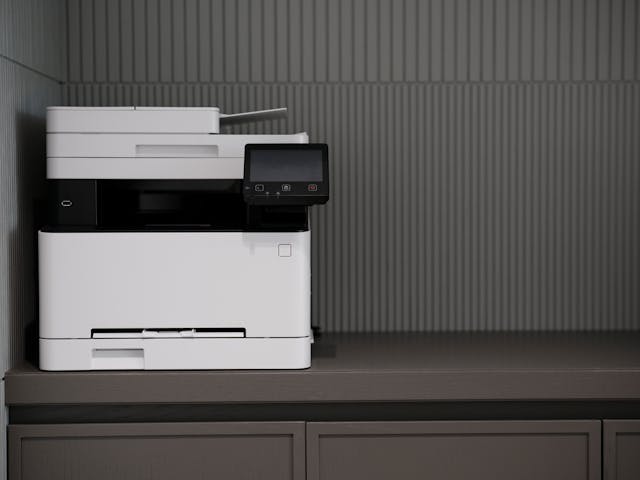
The Brother MFC-J6910DW is an A3 inkjet all-in-one printer. It was built for:
- A3 documents and spreadsheets
- Marketing materials and posters
- Office graphics
- Photos on glossy or matte paper
According to Brother’s original specifications, the printer supports up to A3 paper size with inkjet dye inks and a maximum resolution of 6000 × 1200 dpi (optimized).
That resolution number sounds impressive. And in practice? It is, for paper.
What It Was Not Designed For
This matters more.
The MFC-J6910DW was not designed to:
- Print on thick stretched canvas
- Handle rigid or fabric-based media
- Use pigment inks optimized for archival art
- Feed heavy textured materials reliably
And this single distinction explains almost every limitation people run into.
What “Canvas Style” Actually Means (And Why It’s Confusing)
The phrase canvas style causes more confusion than almost any printer term.
True Canvas Printing vs Canvas-Style Printing
Let’s separate them cleanly.
True canvas printing means:
- Printing on woven cotton or poly-cotton canvas
- Often 300–400 GSM thick
- Usually stretched over wooden frames
- Requires rear feed, pigment inks, and strong rollers
Canvas-style printing means:
- Printing on canvas-textured paper
- Feels rough but behaves like paper
- Flat prints, not stretched
- Designed for inkjet printers
Most people asking “brother mfc-j6910dw a3 can it print canvas style” are really asking about the second one.
And that’s good news.
Can the Brother MFC-J6910DW Print on Canvas-Textured Paper?
Short answer: Yes, with conditions.
Long answer: Yes, but only if you choose the right materials and settings.
Compatible Canvas-Style Media
The MFC-J6910DW can handle paper up to around 220–250 GSM, depending on stiffness and coating.
That means it works with:
- Inkjet canvas paper sheets
- Matte canvas-textured photo paper
- Poly-canvas paper (thin variants)
It does not work with:
- Thick artist canvas rolls
- Stretch canvas boards
- Fabric-only canvas
According to printing community reports, papers marketed as “inkjet canvas paper” (not fabric canvas) feed reliably when loaded one sheet at a time.
Quotable fact:
“The Brother MFC-J6910DW supports textured inkjet media under 250 GSM when fed carefully.”
A3 Size: Where This Printer Quietly Shines
Here’s where things get interesting.
Why A3 Makes Canvas Style Look Better
Canvas-style printing benefits from size. Texture looks more intentional when images are larger.
The MFC-J6910DW supports:
- A3 (11.7 × 16.5 inches)
- Borderless printing (with limitations)
That means:
- Wall-art sized prints
- Posters with painterly texture
- Landscape photography with depth
Smaller printers can do canvas-style.
A3 printers make it feel deliberate.
Ink Reality: Dye Ink vs Pigment Ink
This is where expectations need adjusting.
What Ink the MFC-J6910DW Uses
The printer uses dye-based ink, not pigment ink.
Dye ink characteristics:
- Bright colors
- Smooth gradients
- Less archival
- Can fade faster under UV light
Pigment ink characteristics:
- Better longevity
- Matte-friendly
- Preferred for true canvas
What This Means for Canvas-Style Prints
Canvas-textured paper absorbs ink differently. Dye ink still works, but:
- Blacks may appear softer
- Contrast can flatten slightly
- Colors pop more than expected
Is it bad? No.
Is it gallery-archival? Also no.
This printer produces decorative canvas-style prints, not museum pieces.
And that’s okay.
Best Print Settings for Canvas-Style on Brother MFC-J6910DW
This is where most people mess up.
Recommended Settings That Actually Work
After trial and error, these settings consistently perform better:
- Paper Type: Matte Photo Paper
- Print Quality: High or Best
- Color Mode: RGB (avoid auto enhancements)
- Borderless: Off (reduces smearing risk)
- Feed Method: Single-sheet manual feed
Quotable fact:
“Canvas-textured paper prints best on the MFC-J6910DW when treated as matte photo paper.”
One Mistake That Ruins Canvas Prints
Do not stack canvas-style sheets in the tray.
The texture increases friction.
The feed rollers slip.
Edges scuff.
One sheet at a time feels slow, but it saves your sanity.
Image Preparation: The Hidden Canvas Upgrade
The printer matters less than the file.
Edits That Make Canvas-Style Look Intentional
Before printing:
- Increase clarity slightly (+10–15)
- Reduce sharpness (canvas hides fine detail)
- Add subtle grain
- Lift shadows gently
Canvas texture softens everything.
If you don’t compensate, prints look washed out.
This isn’t cheating.
This is understanding the medium.
Limitations You’ll Feel (And Should Expect)
Let’s be honest.
What the Brother MFC-J6910DW Cannot Do
- Print on real stretched canvas
- Handle canvas rolls
- Produce gallery-wrapped edges
- Guarantee long-term fade resistance
If you want:
- Selling artwork
- Archival longevity
- Professional framing
You’re in large-format pigment printer territory.
But for home décor, mockups, gifts, or creative experiments?
This printer punches above its weight.
Comparison: Canvas-Style Options at a Glance
| Feature | MFC-J6910DW | Pro Photo Printer |
| Max Size | A3 | A2+ |
| Canvas-Style Paper | Yes | Yes |
| True Canvas | No | Yes |
| Ink Type | Dye | Pigment |
| Cost | Low | High |
| Skill Required | Moderate | Advanced |
Who Should Use This Printer for Canvas-Style Prints
This setup is ideal if you:
- Want affordable wall art
- Print photos or illustrations
- Like experimenting
- Don’t need archival permanence
It’s not ideal if you:
- Sell fine art
- Print for galleries
- Need UV-resistant longevity
Different tools. Different goals.
FAQ: Brother MFC-J6910DW Canvas Printing
Can the Brother MFC-J6910DW print on real canvas?
No. It cannot feed thick fabric canvas or stretched canvas material.
What is the best canvas paper for this printer?
Inkjet canvas-textured paper under 250 GSM designed for dye ink printers.
Does A3 canvas-style printing look professional?
For home décor and casual display, yes. For galleries, no.
Will canvas-style prints fade quickly?
Dye ink fades faster than pigment, especially in direct sunlight.
Can I frame these prints like real canvas?
Yes, flat framing or foam board mounting works well.
Key Takings
- Brother MFC-J6910DW A3 can print canvas style, not true canvas
- Canvas-textured inkjet paper is the key, not fabric canvas
- A3 size dramatically improves visual impact
- Dye ink limits longevity but enhances color vibrancy
- Correct paper settings matter more than resolution
- One-sheet feeding prevents most printing issues
- This printer excels at creative, decorative canvas-style prints
Additional Resources
- Inkjet Media Guide by Epson: A detailed breakdown of inkjet media types and how texture affects print results across printers.